
Restore Visibility: comments not showing on instagram with quick fixes
When you notice your comments are not showing on Instagram, the culprit is usually one of three things: an overly aggressive spam filter, your own account's hidden word settings, or just a simple network glitch. Instagram's automatic moderation is designed to keep things clean, but sometimes it gets a little too enthusiastic and hides legitimate feedback from your followers. Suddenly, it feels like your engagement has fallen off a cliff.
Why Your Instagram Comments Disappear
More often than not, the reason your comments have vanished is Instagram's own moderation system. These filters can be surprisingly strict, sometimes hiding up to 65% of incoming comments if they trip a wire—think certain keywords, a flood of emojis, or external links. For creators who thrive on that back-and-forth, seeing those interactions disappear is a huge problem.
If you're stuck trying to figure out what's going on, this visual guide can help you diagnose the root cause, whether it's a simple filter setting or a deeper account issue.
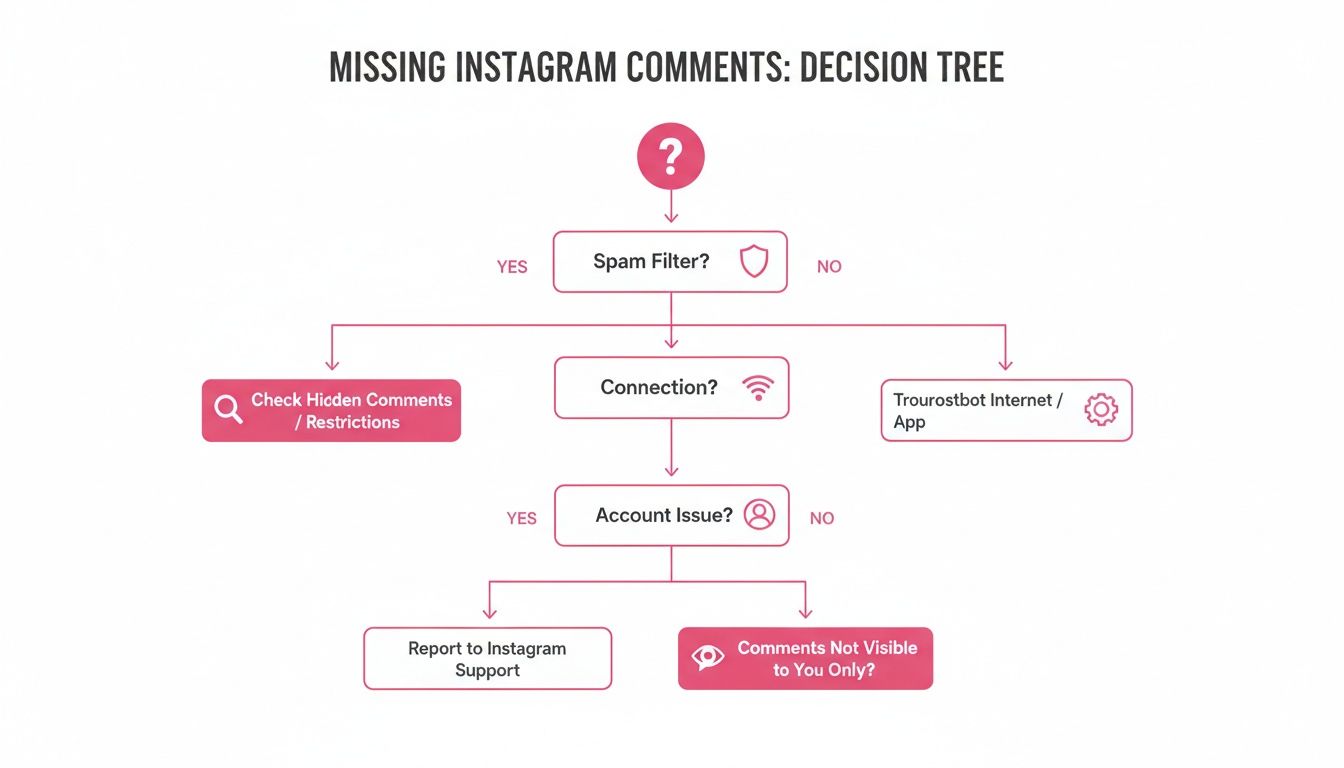
As the decision tree shows, your first move should always be to check your settings. Getting the basics right is foundational, and you can learn more in this general guide on Instagram for small businesses.
To make sure you never miss an opportunity to connect, you can also set up a system to automatically DM someone who comments on Instagram. It's a great way to safeguard every single interaction.
Dive Into Your Instagram Hidden Comment Settings
It's a frustrating feeling. You know people are commenting, but you can't see them anywhere. More often than not, those comments aren't gone—they're just tucked away in a hidden folder, snagged by your own moderation rules. I've seen brands lose out on valuable customer leads simply because a filter was misconfigured, and they didn't catch it until it was too late.
The problem usually lies with Instagram's powerful, but sometimes overzealous, content filtering. These tools are built to shield you from spam and trolls, but they can easily catch legitimate comments in the crossfire. A simple question about "free shipping" could get zapped if you've blocked the word "free" to stop spammers.
Uncover Your Hidden Words List
Your first stop should be the Hidden Words settings. Think of this as a customizable list of words, phrases, and emojis that Instagram will automatically hide from your comments. It's great for blocking trolls, but an overly broad list can turn your comment section into a ghost town.
To get there, head to Settings > Privacy > Hidden Words.
Once you're in, you'll see a few important options:
Hide Comments: This is a toggle for Instagram's default list of offensive terms.
Advanced Comment Filtering: A much stricter filter that hides even more potential spam.
Manage Custom Words and Phrases: This is your personal blocklist, where the real trouble often starts.
A great first diagnostic step is to temporarily switch off Advanced Comment Filtering. If comments suddenly pop back into view, you know the filter was just too aggressive. Then, carefully comb through your custom word list. Look for common terms customers might use, like "price," "help," or "link," that you might have added without thinking.
I see this all the time: a fitness coach blocks the word "follow" to stop "follow-for-follow" spam. But this also hides genuine comments like, "I follow all your workout plans!" Be specific with your blocklist.
Check Your Story Reply and Commenter Restrictions
Beyond the general comment filters, you might have specific restrictions on who can even interact with your content in the first place. This is a huge, and often overlooked, cause of missing engagement.
Take a look at the settings that control who is allowed to comment on your content.
This screenshot shows the "Allow Comments From" setting. If yours is limited to just your followers, you're cutting off a massive source of potential engagement.
If you have this set to "People You Follow" or "Your Followers," you are actively blocking potential new customers from ever talking to you on your posts. For any business account, this should almost always be set to "Everyone" to maximize your reach and capture every possible lead.
Story reply settings can cause similar confusion. In fact, some research suggests that 55% of missing comment cases are actually tied back to privacy settings and story restrictions. If you've restricted an account, their replies become invisible to you unless you manually approve them—a situation affecting nearly one in five business profiles. If you want to see how to check and fix this common problem, you can watch this detailed walkthrough.
By carefully auditing these settings, you can reclaim those lost conversations and make sure your community's voice is always heard.
Fix App and Network Glitches
So, you've double-checked your Instagram settings and everything looks right, but comments are still MIA. Nine times out of ten, the culprit is a simple glitch with the app or your network connection.
Before you go down the rabbit hole of contacting Instagram support, running through a quick technical checklist usually sorts these things out. Think of it as a quick reset—sometimes, all the app needs is a fresh start to sync up properly with Instagram's servers.
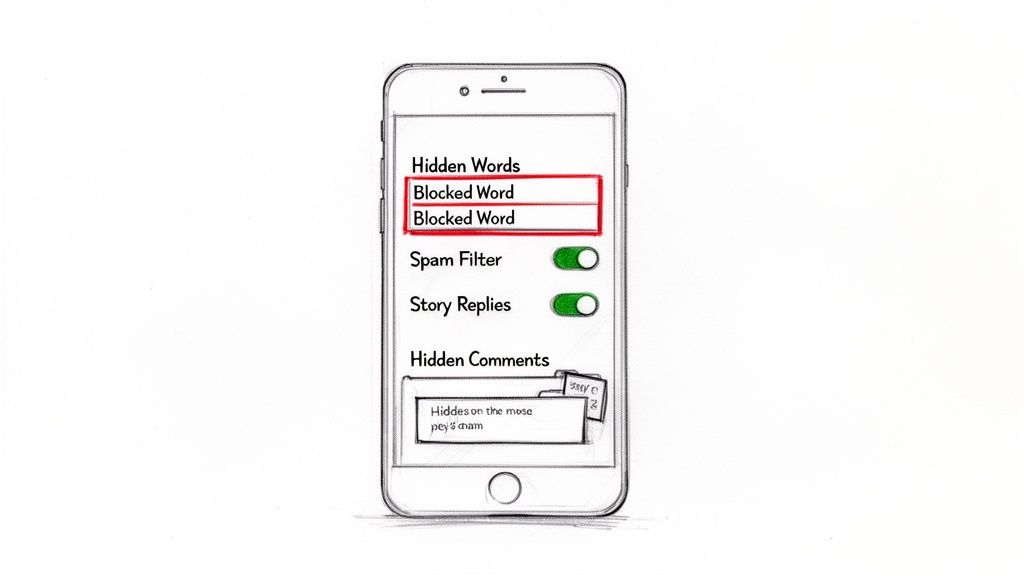
These are the go-to first steps for any social media manager I know. They're simple, effective, and they work because they hit the most common weak points between your phone and Instagram's platform.
Start with Your Internet Connection
The most common reason comments fail to load? A spotty or unstable internet connection. Every time you open a post, the app has to actively pull that comment data from Instagram's servers. If your connection flickers for even a moment, that process gets interrupted.
A quick way to test this is to switch between your Wi-Fi and mobile data. If comments suddenly pop up on 5G but not on your home Wi-Fi, you've found your problem. In that case, a good old-fashioned router reboot is your next step.
Here are a few other network resets to try:
Toggle Airplane Mode: Flip it on for 15 seconds, then turn it off. This forces your phone to establish a brand-new connection to the network.
Restart Your Device: A full reboot can clear out temporary network conflicts that might be bogging down your apps.
If comments are still invisible after these steps, the issue is more likely with the app data on your device.
A stable connection is non-negotiable for loading real-time data like comments. Even a momentary drop while the app is loading can leave you with an empty comment section, even if your internet seems perfectly fine a second later.
Give the Instagram App a Refresh
Over time, the Instagram app builds up a cache of temporary files to help it load content faster. But sometimes, these files get corrupted and cause weird display issues, like—you guessed it—missing comments. Clearing this cache is like wiping the slate clean without touching your account data.
For Android users, this is pretty straightforward. Just head to Settings > Apps > Instagram > Storage and tap "Clear Cache." Be careful not to hit "Clear Data," as that will log you out and reset all your app settings.
On an iPhone, things work a bit differently since iOS doesn't let you clear the cache for most apps directly. The best and most effective method is to simply delete the Instagram app and reinstall it from the App Store.
This process not only gets rid of all the temporary junk files but also ensures you're running the latest, most stable version of the app. An outdated app is another classic reason comments are not showing on Instagram, as older builds can have compatibility problems with new server updates. As a final quick fix, just logging out and back in can sometimes do the trick by refreshing your session token.
Are You Facing an Instagram Restriction or Shadowban?
If your settings are clean and the app seems fine, but your comments still aren't showing up, it's time to consider a less obvious culprit. The problem might not be a technical glitch at all—it could be a penalty from Instagram itself. The platform's algorithms can quietly place restrictions on your account, often without sending you a single notification, throttling your visibility and hiding your engagement.
This usually happens when an account's activity looks a little too robotic for Instagram's liking. Brands rushing to grow can accidentally trigger these flags by posting too frequently, hammering the same hashtags over and over, or using hashtags that have been banned or broken.
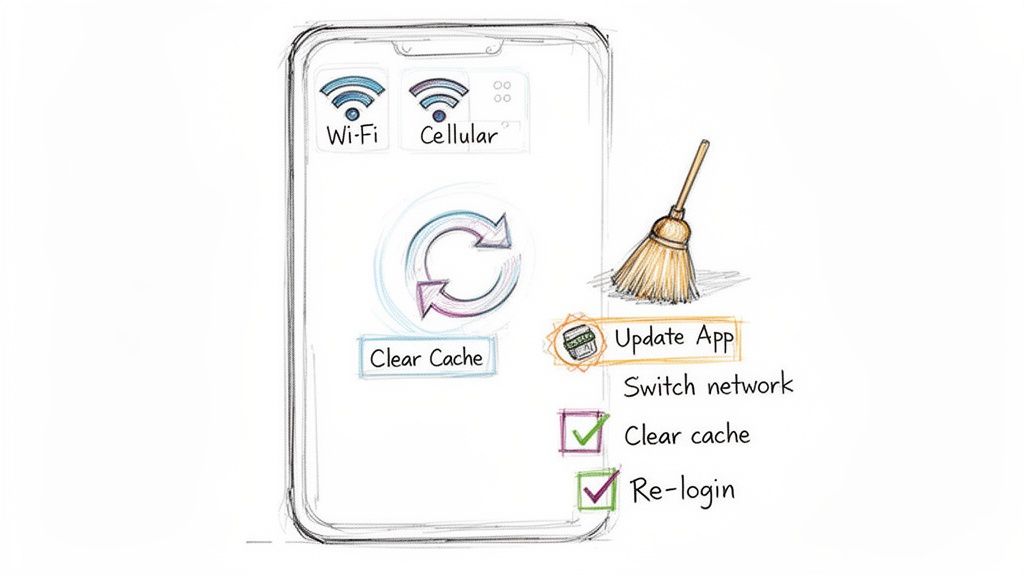
What Is a Shadowban, and How Do You Spot It?
A shadowban is what the community calls it when Instagram secretly limits your content's reach. Your posts won't appear on the Explore page or in hashtag searches for anyone who doesn't follow you, and sometimes, your comments become invisible to others. You can still post and comment, but it feels like you're talking to an empty room.
Watch out for these classic symptoms of a shadowban:
A sudden, drastic drop in likes, comments, and overall engagement, especially from non-followers.
Your posts are nowhere to be found under the hashtags you used (check this from an account that doesn't follow you).
You post a comment, and it vanishes moments later for everyone but you.
This is the algorithm's way of saying it thinks your behavior is spammy or bot-like. I once worked with a fitness influencer who was completely stumped by her plummeting engagement. After a little digging, we found she was consistently using three popular hashtags that Instagram had flagged for misuse. Once she removed them and started spacing out her posts more naturally, her visibility bounced back within a week.
How To Check Your Account Status
Before you jump to conclusions, Instagram actually gives you a way to check for official violations. This should be your first stop if you suspect a restriction is messing with your comments.
Just head over to your profile and navigate to Settings and privacy > Account Status.
This screen will tell you if any of your content has been taken down for violating Community Guidelines or if your account is currently being blocked from recommendations. You're looking for green checkmarks across the board. If you see a warning flag, Instagram will give you a brief rundown of what happened and what you can do about it.
A clean Account Status page is your best indicator that the platform views your account as being in good standing. If you see warnings here, addressing them immediately is your top priority for restoring full functionality and visibility.
If your account status looks perfect but you still think you're shadowbanned, the best fix is often the simplest: take a break. Log off and stop all activity—no posting, no commenting, no liking—for at least 48-72 hours. This "cool-down" period can act as a reset for the algorithm's perception of your account.
You can also use a free Instagram account monitor to keep tabs on your status and engagement metrics automatically. It saves you from having to check everything manually and helps you spot potential issues much faster.
When All Else Fails: How to Contact Instagram Support (and Actually Get Help)
So you've tried every trick in the book. You've cleared your cache, tinkered with your settings, and even tried posting from a different device, but your comments are still playing hide-and-seek. It's time to call in the cavalry.
Contacting Instagram support can feel a bit like sending a message in a bottle, but I've learned that how you frame your request makes a world of difference. The goal is to make it as simple as possible for their team to understand your problem and act on it. A clear, well-documented report is much harder to ignore.
First things first, gather your evidence. Before you even think about writing your report, you need proof. Take clear screenshots or, even better, a screen recording that shows the issue in action. A picture of a post showing a high comment count with only a few visible comments is gold. This visual proof speaks volumes and is far more powerful than words alone.
Submitting Your Support Request the Right Way
The most effective way to report a problem is directly through the Instagram app. Doing it this way automatically sends along important diagnostic info about your phone and app version, which helps their tech team immensely.
To do this, head to your profile, tap the hamburger menu icon (the three lines), and navigate to Settings and privacy > Help > Report a Problem.
When you get to the description box, resist the urge to just type "my comments are gone." A vague message like that is the fastest way to get your ticket closed with no resolution. You need to be concise but incredibly detailed. Tell them the story of what's happening, step-by-step.
My Pro Tip: Treat your report like you're a QA tester filing a bug report. Start with a quick summary, list every single troubleshooting step you've already taken (this shows you've done your homework), and then describe what you expected to happen versus what actually happened. This helps them narrow down the cause much faster.
I've seen this exact approach work wonders. Here's a template that helped one of my clients, a small e-commerce brand, get their missing comments restored in under 48 hours:
Subject: Comments Not Showing on Post [Link to Post]
Description: "Hello, I am experiencing an issue where comments are not visible on my recent post. The comment count shows '15 comments,' but when I open the section, only 3 are displayed. I have already confirmed my Hidden Words filters are off, cleared the app cache, reinstalled the app, and checked on both Wi-Fi and mobile data. The issue persists. Attached are screenshots showing the discrepancy. Please investigate this technical glitch."
Managing Your Expectations
Once you hit send, the waiting game begins. You probably won't get a personal, handcrafted reply right away. Instagram's support team is dealing with a massive number of requests every single day.
But here's the thing: detailed reports like yours are incredibly valuable. When multiple users report the same bug with clear evidence, it flags a potential widespread issue that needs a patch. By submitting a thorough request, you're not just helping yourself; you're contributing to the data they need to fix the platform for everyone. And if the problem is specific to your account, a well-documented ticket is your absolute best shot at getting it resolved.
Prevent Missed Comments With Automation
Fixing the problem after you've already missed a comment is one thing, but what if you could stop missing them in the first place? That's where you can really start to change the game. Instead of just relying on the native Instagram app—which, let's be honest, is prone to glitches, delays, and some pretty aggressive filtering—many brands are turning to automation tools.
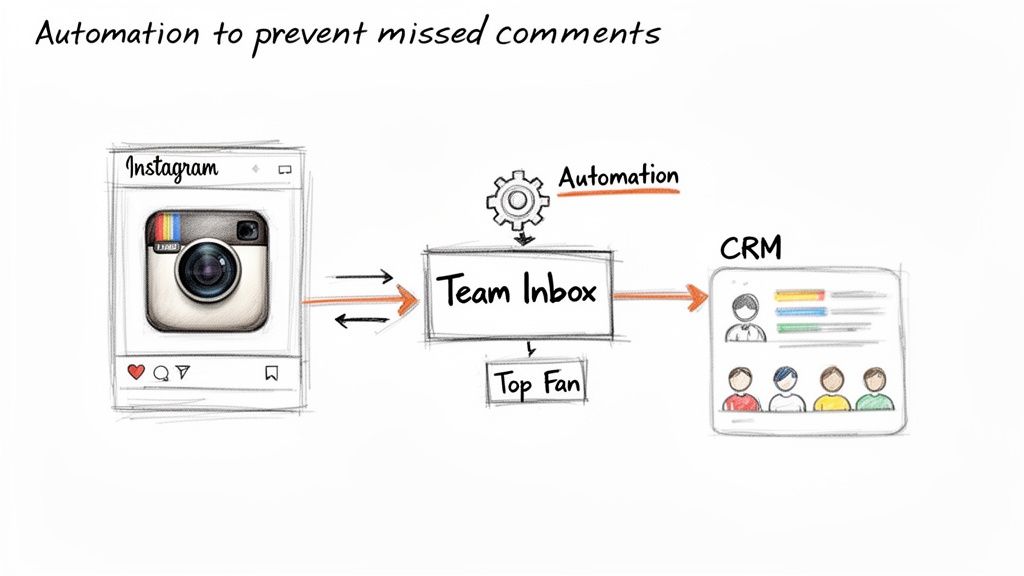
These tools hook directly into Instagram's official API, which lets them grab every single comment the moment it's posted. This completely bypasses the app's potential issues, ensuring no legitimate interaction ever falls through the cracks. For example, a platform like happydms can pull all of your comments into a single team inbox in real-time. This means your team sees everything instantly, long before Instagram's own algorithm might decide to hide or delay something.
Streamline Your Engagement Workflow
It's not just about catching comments, though. True automation unlocks much smarter ways to manage your community. You can build systems that automatically tag your most engaged followers, flag conversations that need a personal touch, or even sync entire comment threads directly into your CRM. This creates a seamless, permanent record of every interaction.
We've seen this work wonders for our clients. One e-commerce brand, for instance, saw a 30% boost in engagement almost immediately after setting up automated replies. When a customer asked about shipping times, the system instantly replied with a helpful link and tagged the conversation for a human agent to follow up personally. No more lost sales from missed questions.
This shift from reactive troubleshooting to proactive management is crucial. You're no longer just fixing a problem; you're building a system that makes the problem irrelevant.
To really get ahead of the issue, it's also a good idea to focus on proactive strategies to increase Instagram engagement. The more active and visible your posts are, the better the algorithm will treat your content overall.
Manual vs Automated Comment Management
The difference between managing comments by hand versus with a dedicated platform is night and day, especially as your account grows. Manual management hits a wall fast, leading to missed opportunities and a frustrated team. Here's a quick breakdown of how automation solves those core challenges.
| Feature | Manual Management | Automated with happydms |
|---|---|---|
| Comment Visibility | Prone to app glitches, delays, and hidden comments. | Captures 100% of comments in real-time via the API. |
| Response Speed | Slow; depends on team availability and constant checking. | Instant replies and alerts for high-priority comments. |
| Team Collaboration | Hard to track who replied; risk of duplicate responses. | Unified inbox with assignments, notes, and clear ownership. |
| Spam & Trolls | Requires constant manual filtering and hiding. | Automatically hides or deletes comments based on keywords. |
| Lead Generation | Inefficient; requires manually copying user info. | Automatically tags leads and syncs data to your CRM. |
| Follower Insights | Relies on guesswork and manual tracking of top fans. | Identifies and segments top fans based on interaction data. |
Ultimately, automation frees your team from the tedious work of monitoring and filtering, allowing them to focus on building genuine relationships with your audience.
From Comments to Conversions
This level of organization does more than just keep you sane—it fuels smarter marketing. When you segment followers based on their comment history, you can launch incredibly targeted DM campaigns that drive real results. Imagine sending a special discount code to every single person who commented on a specific product post in the last 30 days. Powerful, right?
This creates a fantastic feedback loop where every comment becomes a valuable piece of data. You can learn more about designing these kinds of powerful systems by checking out this guide to workflow marketing automation. By bringing these tools into your process, you can finally ensure every comment is seen, answered, and used to strengthen your customer relationships.
FAQ For Missing Instagram Comments
Even after trying all the standard fixes, a few specific, nagging questions always seem to come up when comments go missing. Let's tackle those common head-scratchers so you know exactly what's going on.
Frequently Asked Questions
Have a question not in here? Contact us
- Why Can I See A Comment Count But Not The Comments?This is a classic. You see the notification or the count, but the actual text is nowhere to be found. This almost always points to either a filter or a simple loading delay. Instagram's algorithm often tries to be "helpful" by hiding comments it thinks are less relevant. Your first move should be to tap the sort filter at the top of your comment section and switch it from "Top comments" to "Most recent". This forces the app to show you everything in chronological order. The other big culprit is Instagram's own Hidden Words feature. You might think it's off, but it's always worth double-checking. If you know for a fact someone commented but you still can't see it, it's likely they have a private account or you've restricted them in the past. The comment is there, just not visible to you.
- Can I Recover Deleted Instagram Comments?The short answer is, unfortunately, no. Once you or the original poster manually deletes a comment, it's gone for good. Instagram doesn't have a recycle bin or recovery folder for comments. But there's a sliver of hope. If a comment was simply hidden by one of Instagram's automatic filters, you can usually find it and bring it back. On the post in question, scroll all the way to the bottom of the comment list. Look for a link that says "View Hidden Comments" and give it a tap. From there, you can review and approve any genuine comments that got caught in the net.
- How Long Does A Commenting Ban Last?If you've been a little too enthusiastic with your replies and Instagram flags your account for spam-like behavior, you'll probably find yourself in a temporary timeout. These shadow restrictions usually last anywhere from 24 to 48 hours. The best thing you can do is just step away. Stop all commenting, liking, and following for at least 48 hours. This cool-down period is typically enough to reset the algorithm's view of your account and get you back in good standing. For businesses that need to manage a high volume of comments without getting flagged, manual replies just aren't sustainable. Looking into a chatbot for Instagram that uses the official API is a much safer and more scalable approach.
At happydms, we turn your Instagram engagement into a predictable revenue stream. Our automation platform captures every comment, automates replies, and syncs follower data to your CRM, ensuring you never miss a lead. Start your free trial today and convert followers into customers.